Duplicate Photo Finder Screenshots
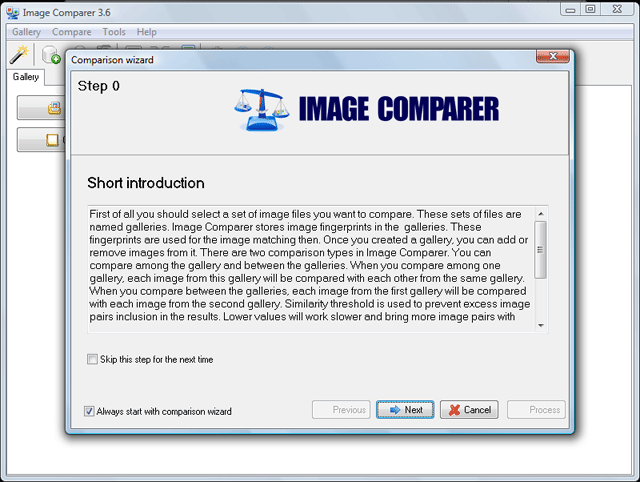
Comparison wizard
If you just installed the program and have never seen it before, the simple Comparison Wizard will go through the entire comparison process.
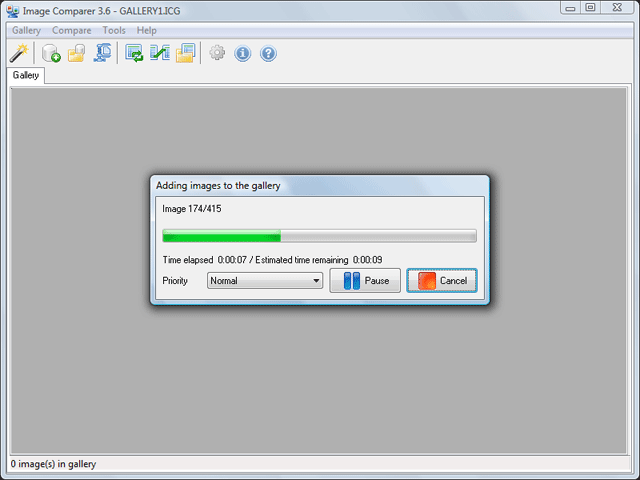
Gallery creation
The program operates with the photo groups named "galleries". Here is shown the gallery creation process. The application processes some precalculations at this step for the further comparison.
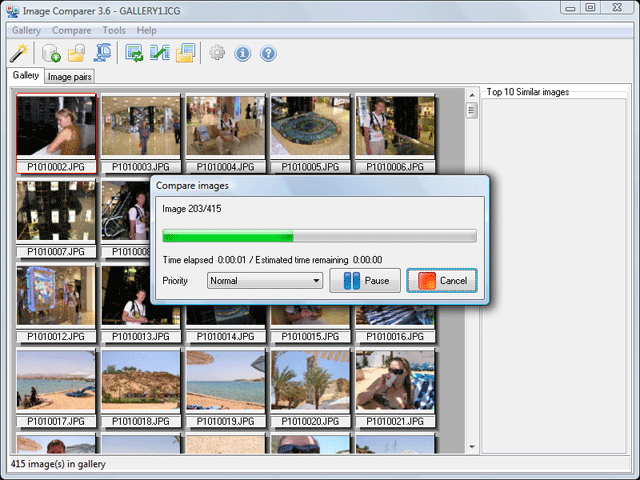
Comparison process
Here you can see the photo comparison process for the currently opened gallery.
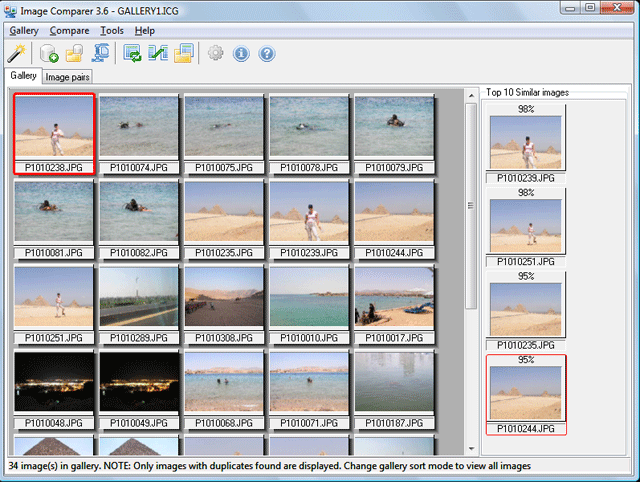
Gallery - Thumbnails mode
This is a gallery shown in thumbnails mode (simple grid mode is available as well). Here you can see Top 10 similar images area since comparison results are open.
Comparison results
Here are the comparison results displayed in the grid mode (tree mode is also available). By double click on the image pair, you can compare them side-by-side in fullscreen mode.
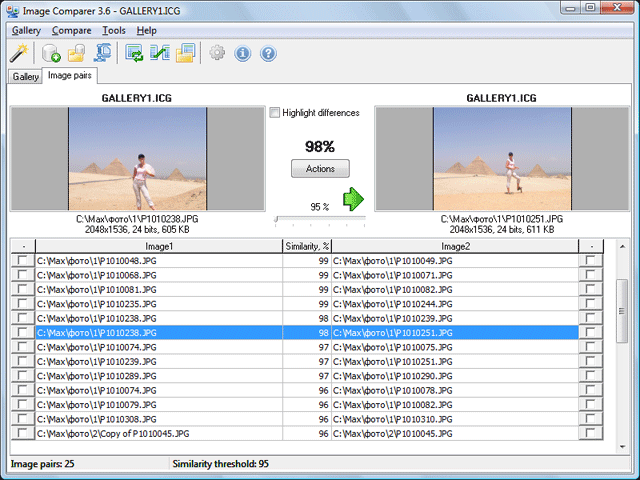
Differences highlighting
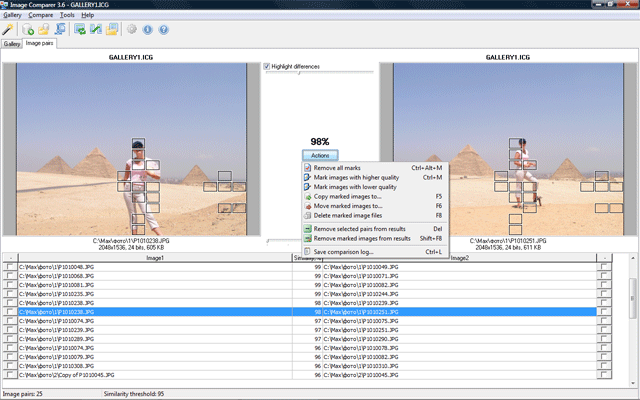
The program can highlight the image differences if you set the special option.
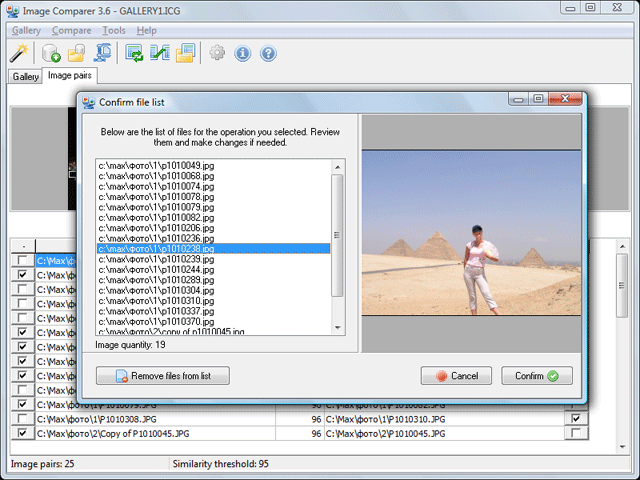
Delete confirmation
Once you marked the files (or the program marked them automatically) you can move, copy or delete them. To make you sure that only needed files be affected, the program brings you the confirmation window shown below:
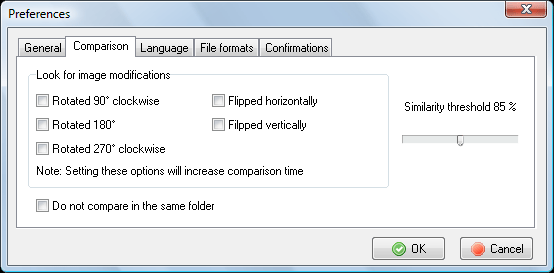
Comparison preferences
Here is the "Comparison" tab of the "Preferences" dialog shown:
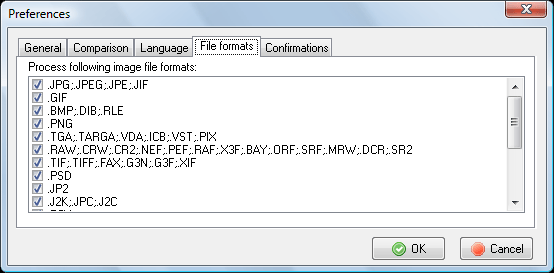
Supported image file formats
Here is the "File formats" tab of the "Preferences" dialog shown:
We hope we developed a handy application and you'll like it. Just give it a free try :)