How to Find and Remove Similar Photos on Windows
Phone backups, camera bursts, and “Save As…” exports fill hard drives with near-duplicate photos: same scene, different size or quality. Tools that only compare file names or checksums miss most of them. This guide shows how to find exact duplicates and similar photos on Windows with Image Comparer, using content-based matching.
Exact duplicates vs similar photos
- Exact duplicates — identical (or visually identical) images; often the same file copied twice or exported at the same resolution.
- Similar / near-duplicate photos — look alike but differ in resolution, JPEG quality, crop, rotation, or exposure (classic phone burst).
Image Comparer lets you set a similarity threshold. Near 100% focuses on exact matches; lower values surface look-alikes so you can keep the best frame and remove the rest.
Before you start
- Download Image Comparer and install it on Windows 7/8/10/11.
- Optional: copy a test folder first if you want a dry run before cleaning your main library.
- Decide whether you will scan one folder (gallery) or compare two folders against each other.
Step 1 — Open the Comparison Wizard
Start the program. The Comparison Wizard walks you through the scan:
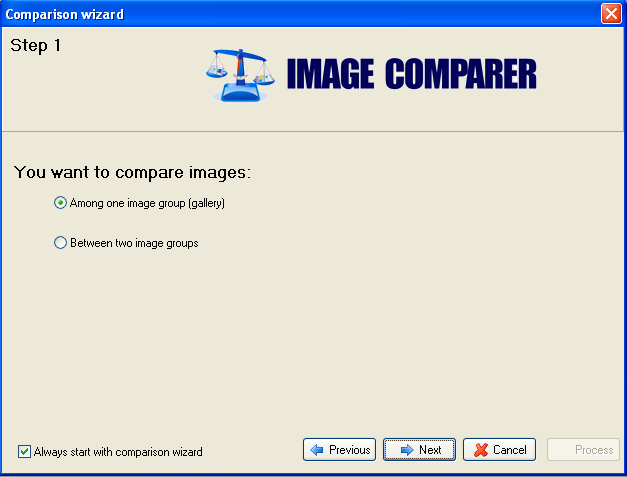
Choose whether to compare images inside one gallery or between two galleries, then continue.
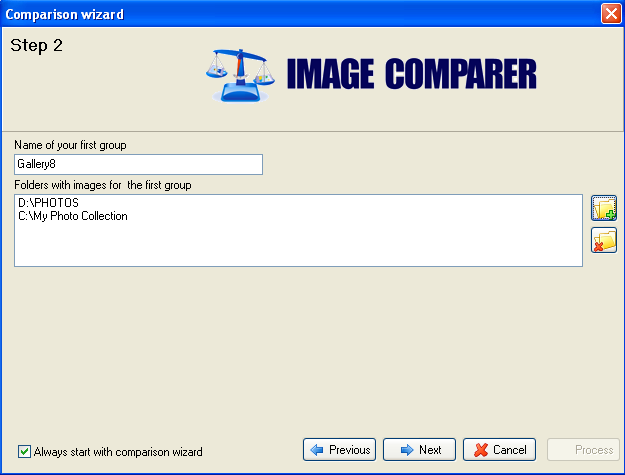
Step 2 — Point to your photo folders
Name the gallery and select the folders to include. You can combine folders from different drives into one gallery.
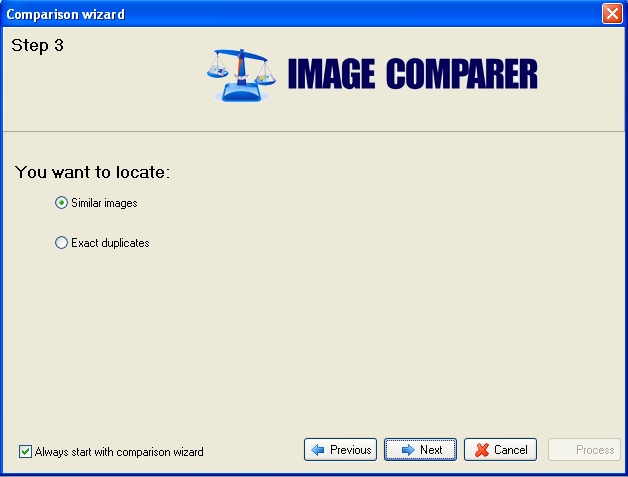
Step 3 — Exact duplicates or similar photos?
Tell the program what to look for. Image Comparer uses content-based image search: it judges visual similarity, not only file name or size. That is how resized, rotated, flipped, and recompressed copies still match.
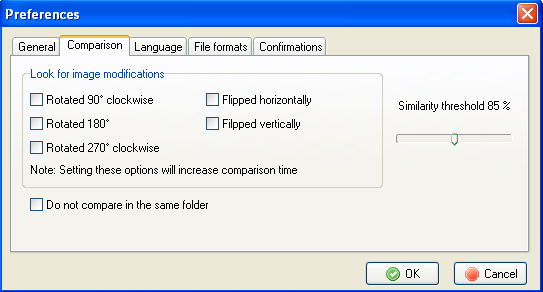
Default similarity is often around 85–95%. For stricter exact matching, raise it toward 100%. For aggressive near-duplicate cleanup (bursts, slight crops), lower it and review carefully.
Fine-tune later under Tools → Preferences → Comparison (Similarity Threshold slider):
Step 4 — Save results and run the scan
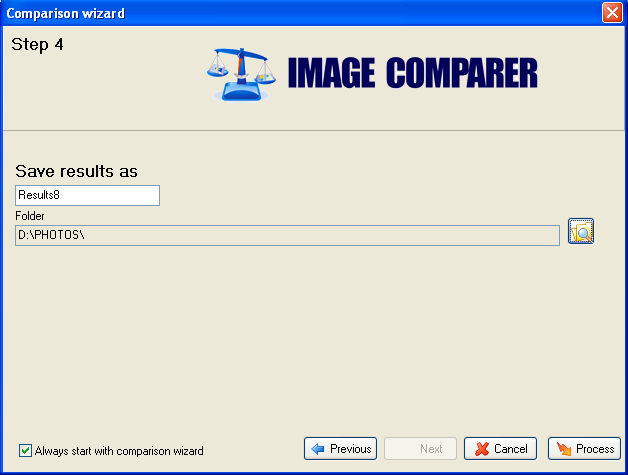
Choose where to store the comparison results so next time you can add new photos instead of starting from scratch.
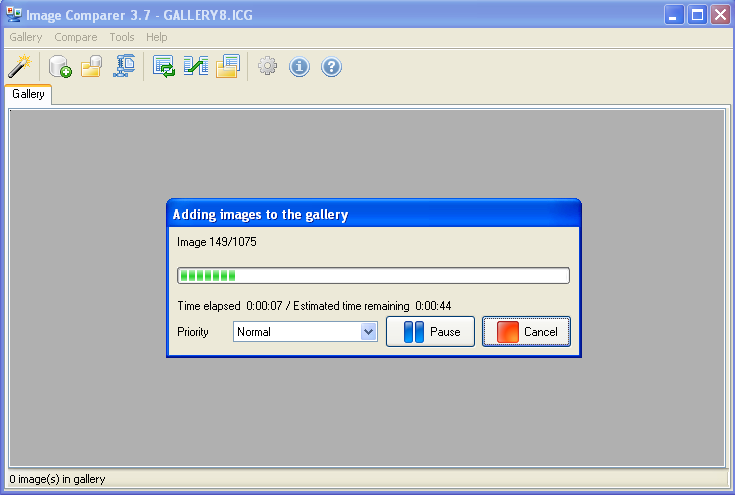
Press Process and wait for the scan. Large libraries still finish quickly compared to sorting by hand.
Step 5 — Review pairs and clean up
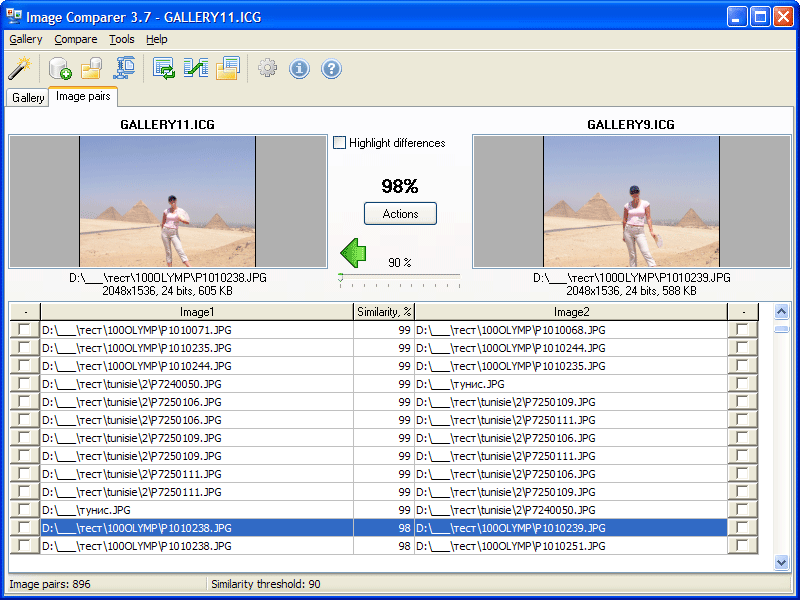
In the results you get a gallery view and a pairs view. Open pairs side by side, keep the sharper or higher-resolution shot, tick the rest, then delete, move, or copy. You can also auto-mark higher or lower quality images.
More UI detail: screenshots.
Tips for a safer cleanup
- Start with a high threshold, then lower it if you still see obvious near-duplicates.
- Prefer move to a folder over permanent delete on the first pass.
- After cleaning, add new imports to the same gallery so fresh duplicates are easier to catch.
FAQ
Will this find WhatsApp or social-media recompressed copies?
Often yes — those are classic near-duplicates (same picture, different compression or size). Use a similarity setting below 100% and verify pairs before deleting.
RAW and HEIC?
Yes. Image Comparer supports RAW, HEIC/HEIF, JPEG, WEBP, PNG, TIFF, PSD, and many other formats. See the format list on the home page.
Is this a free duplicate photo finder?
You can download free, scan, and review matches with no time limit. Licensing unlocks batch move/delete/copy after you are happy with the results. Pricing is on the purchase page — try the download first.
Ready to clean the library? Download free and run a scan on a test folder today.